SCHEDULING, FREE
How to simplify scheduling for a dumpster rental service
A delivery date and a pickup date on every order, one Operations screen sorted by urgency, and a date change that moves the order, the dispatch task and the driver's list in one edit.
- Late, Today, Tomorrow and Next Week chips on every tab
- Change a date once; the driver's task moves with it
- Customers request new dates; you approve with one click
- Days off and holidays blocked on the booking page
Get the Free SoftwareSee features
4.7 on the App Store Available in all 50 US states and Canada
Last updated September 27, 2026 Published by Dumpster Controls, built by a software group led by a founder with 20+ years in enterprise IT who also ran a roll-off business for four years
In Dumpster Controls, scheduling is two dates on every order, a delivery date and a pickup date, and one screen, Operations, that groups them by urgency: Late, Today, Tomorrow and Next Week. Change a date once and the order, the dispatch task and the driver's list move together, with the change logged under your name. It is free for any fleet size, in the USA and Canada.
There is no separate calendar to keep in sync: the date lives on the order, the order creates the tasks, and everyone from the dispatcher to the customer reads the same date. A whiteboard with a pickup circled on Thursday is a second copy, and second copies are where missed pickups come from.
How scheduling works in Dumpster Controls
- Every order carries its dates. A phone order takes a Delivery Date that cannot be in the past, a Pickup Date that cannot come before it, and a Due Date. An online booking computes the pickup from the duration the customer picked, and creating the order creates the delivery and pickup tasks.
- Read Operations by urgency. Deliveries and Pickups are two tabs. Chips summarize Total, Late, Today, Tomorrow and Next Week; click one to filter. Search, sort by Oldest Due or Highest Amount, filter by size or driver, or Export CSV.
- Assign the driver from the same drawer. Unassigned cards show an Assign Driver button. Pick a driver and Save Assignment; the driver gets a Task Assigned push and an SMS with the address. Here and on the Dispatch board it is the same data.
- Move a date with the pencil. In the drawer, the Delivery Date or Pickup Date row has a pencil icon. Pick the new date and confirm: the order and every active dispatch task move together, and the change is written to the order timeline with your name.
- Let the customer ask, and approve in one click. From the tracking link sent by text, the customer requests an earlier pickup or a paid extension at your per-day price. The request lands in the Pickups drawer as pending; Approve moves the date and the task, and charges the saved card first when automatic charging is on.
- Block the days you do not work. Weekly Schedule marks days Off, and Holidays and Blackout Dates blocks exact dates. Online orders then only arrive for open days, and a pickup that lands on a blocked day moves to the next open one.
Every step above is documented screen by screen in the manual: How to manage scheduled deliveries.
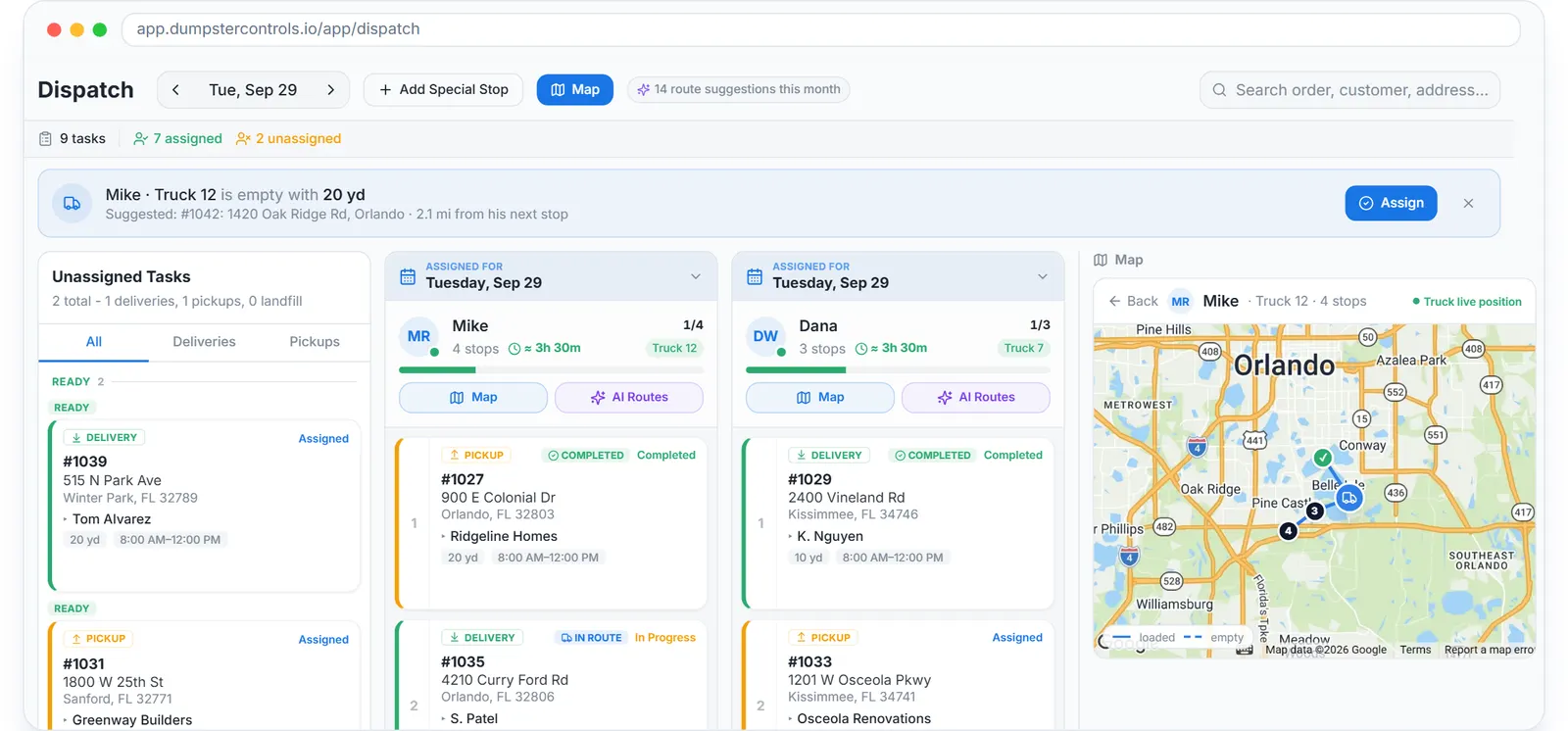
The same date, on the board: the cards carry their delivery and pickup dates, and a late one is red in every lane.
What you need
A free account
With your dumpster sizes registered in Inventory, with counts.
Drivers on the free app
Invited from the team page, iOS or Android.
Your days off and holidays
Set in Booking Page, if you take online orders.
Stripe, optionally
Only if you want extension requests charged to the saved card automatically.
Where this fits
The long answer, with swaps, late flags and where each date lives, is at dumpster scheduling software. The board where the day gets built is at dumpster dispatch software, and what scheduling costs elsewhere per month is on dumpster rental software cost.
Next guide: how to automate scheduling for a waste management business.
How to simplify scheduling for a dumpster rental service: FAQ
Topicsdumpster rental scheduling simplify scheduling dumpster rental dumpster delivery and pickup schedule dumpster scheduling software free dumpster rental software